
Team Block
The Team Block allows you to showcase your team members in an engaging and visually appealing carousel. It dynamically pulls team member information from WordPress posts, making it easy to update and manage your team roster.
Content Editor Fields
Team Members
- Description: A list of team members to be displayed in the block.
- Usage: This is populated automatically by selecting posts from the "Team Member" custom post type in WordPress. Each team member post will represent one slide in the carousel.
Profile Picture
- Description: The profile picture of the team member.
- Usage: Upload a clear, professional photo of the team member. This image will be displayed prominently in their carousel slide.
- Source: This image is the "Featured Image" of the team member's post.
Name
- Description: The full name of the team member.
- Usage: Enter the team member's name as you want it to appear on the website.
- Source: This is the "Title" of the team member's post.
Job Title
- Description: The job title or role of the team member.
- Usage: Enter the team member's job title. This will be displayed below their name.
- Source: This is a custom field named
job_titlein the team member's post.
Short Description
- Description: A brief description or bio of the team member.
- Usage: Provide a short, engaging description of the team member's background, expertise, or role.
- Source: This is the "Excerpt" of the team member's post.
Display (Layout Options):
The Team Block displays team members in a horizontal carousel.
Carousel
- Description: Team members are displayed in a responsive carousel that allows users to scroll through the team.
- Usage: The carousel is the primary layout for this block. It automatically adapts to different screen sizes.
- Library: The carousel is powered by the Splide.js library.
- Navigation: The carousel is navigable by dragging or swiping on touch devices. On desktop, the navigation is done by dragging.
- Arrows: The arrows are not displayed by default, but there is commented code to add them.
Card Style (Content Styling):
The Team Block offers a consistent style for all team members.
Consistent Layout
- Description: Each team member's information is displayed in a uniform layout.
- Usage: The layout includes the profile picture, name, job title, and short description.
- Image: The image is displayed at the top of the card.
- Text: The name and job title are displayed in
h6tags, and the description is displayed in aptag. - Conditional Display: If a field is empty, it will not be displayed.
Example Usage:
Steps:
- Create Team Member Posts: Create posts in the "Team Member" custom post type.
- Add the block: Insert the Team Block into your page or post.
- Set the content:
- Profile Picture: Upload an image for each team member as the "Featured Image".
- Name: Enter the team member's name in the post title.
- Job Title: Enter the team member's job title in the
job_titlecustom field. - Short Description: Enter a short description in the post excerpt.
- Save the Block: Your Team Block is now ready for display!
Result:
When properly configured, the Team Block will render a visually appealing carousel of your team members on your webpage. Each team member will have their profile picture, name, job title, and short description displayed in a consistent format. The carousel will allow users to easily browse through the team.
Preview with image:
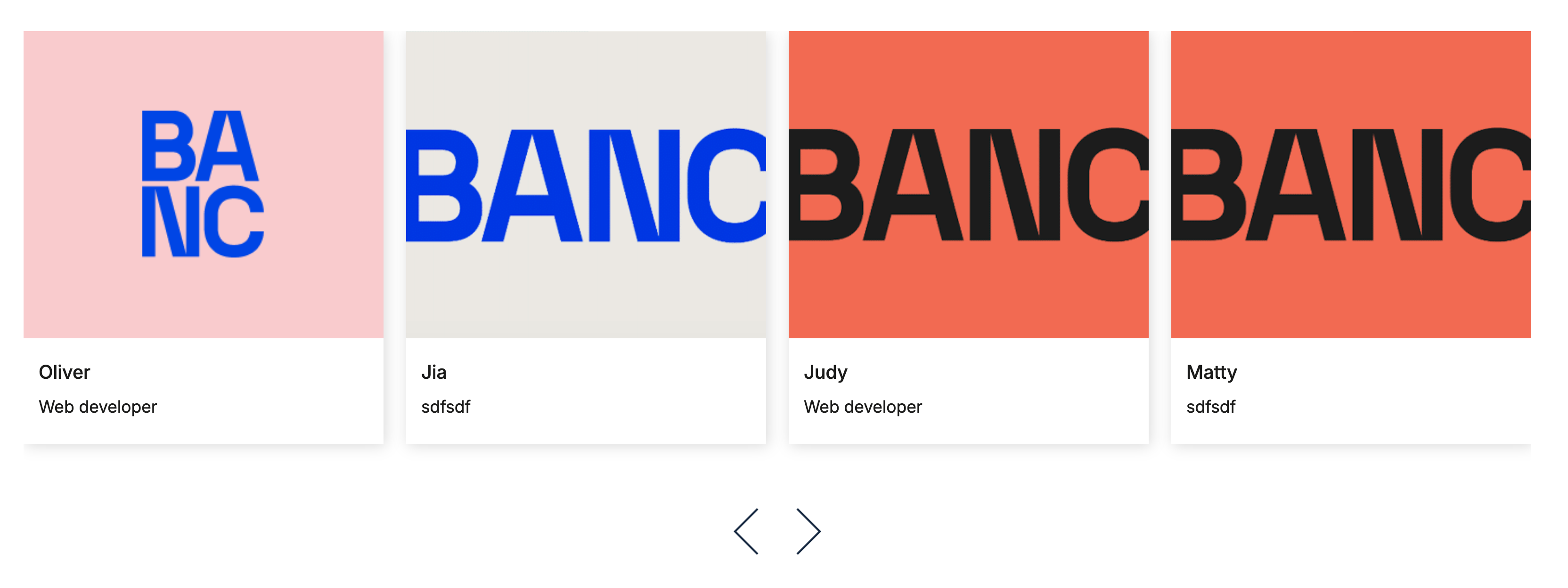
Editor preview:

Benefits:
- Dynamic Content: Team member information is pulled directly from WordPress posts, making updates easy.
- Visual Appeal: The carousel format is engaging and visually appealing.
- User-Friendly: The carousel is easy to navigate and adapts to different screen sizes.
- Clear Structure: The block clearly displays the team member's information.
- Conditional Display: Empty fields are not displayed.
Conclusion:
The Team Block is a powerful and user-friendly tool for showcasing your team members on your website. It provides a dynamic, visually appealing, and easy-to-manage way to introduce your team to your visitors.